Convert your design into GDSII format
Once you have compiled your fabric RTL using the building fabric guide, you can then convert your design into a GDS file for fabrication. The hardening process is a 2-stage process. We will first harden all the tiles, and then stitch them together. We chose to do this instead of compiling the whole fabric as a flat net list is because in an FPGA there are a lot of repeated components, which means synthesis will repeatedly synthesize similar logic, and the subsequent place and route will also be doing the same. To speed up the hardening process, we deploy this two-stage strategy with two key benefits:
Makes fabric development time much faster.
Makes scaling your fabric to larger designs much easier.
Per tile hardening is much faster as the size of the design is just much smaller. And since a fabric has a lot of repeated elements, optimizing one majority tile might potentially give you huge benefits in terms of power, performance and area (PPA), which enables you to have a performant fabric in a shorter time window. Another benefit is this allows multiple tiles to be developed simultaneously, which allows different parties with different specialties to fully optimize a part of the design.
We are reusing existing pre-hardened tiles, which avoids re-hardening all the tiles on a new run. To get a larger fabric you can simply “add more tiles” to the fabric.csv. If you need to add new tiles for new functionality, you can harden the newly created tile, without needing redoing the rest of the tiles.
To take advantage of fabric stitching, there are two limitations to the tile physical implementation.
The interfaces of adjacent tiles need to line up in the exact order, and they need to align physically with the same spacing.
Adjacent tiles in the same row must have the same height and tiles in the same column must be the same width in order to have perfect stitching. For the tile interface alignment, this is something that our framework will handle, however the tile sizing is something that needs special handling, which we will describe in the following for each stage.
Tip
TL;DR Once the prerequisites are met (Nix environment and a PDK), the quickest way to get a plain GDS is to harden every tile with no size optimisation and stitch them together:
fabulous> gen_all_tile_macros
fabulous> gen_fabric_macro
This uses the default no_opt mode, so each tile takes the DIE_AREA from its gds_config.yaml as-is. For automatically optimised tile sizes, use the Full Automated Flow instead.
Prerequisites
Install tools
Warning
We use librelane as our main flow. To access the full flow, you should use the Nix based installation method, which will provide the full environment with all the required tools.
Note
As of writing, we are using custom build of librelane, as a result, the upstream version of librelane will not work. We are aiming to upstream all the changes.
Enter the Nix environment
Before running any GDS commands, enter the Nix development environment:
FABulous nix-env
This sets up all EDA tools (Yosys, NextPNR, OpenROAD, GHDL, etc.) and verifies they are correctly sourced from the Nix store. Your shell prompt will indicate you are in the Nix environment. For more details and options, see the Nix environment setup guide.
Install PDK
To compile the design, we will also need to install the PDK. For ciel-supported PDKs (e.g. ihp-sg13g2, sky130A, gf180mcu), FABulous automatically resolves the recommended PDK version from LibreLane and installs it via ciel on first use. No manual installation is required. By default, we have set up the project to target the ihp-sg13g2 process (130nm).
For details on how the PDK is resolved and when manual configuration is needed, see the PDK Resolution Logic section.
Changing PDK
We support all PDKs that are supported by librelane. As a result you can switch to targeting other process nodes such as the Sky130A and gf180mcu. For ciel-supported PDKs, you only need to set FAB_PDK in ./<project>/.FABulous/.env or as a shell environment variable. FABulous will automatically resolve FAB_PDK_ROOT and install the correct version. For example:
#... existing content
FAB_PDK='sky130A'
For non-ciel PDKs, you will also need to set FAB_PDK_ROOT to point to your PDK installation directory. See the PDK Resolution Logic for the full set of rules on how these variables are resolved.
For any other PDK, you will need to bring up the PDK to be supported by librelane. You can follow this guide for more details. For more advanced nodes, it is likely that you will need to further modify and add steps to the flow for getting a working and manufacturable design.
Tile to GDS
To convert a tile into a GDSII file, run the following command:
fabulous> gen_tile_macro <tile_name>
This will generate the tile GDS for you under the tile macro folder (<project>/Tile/<tile_name>/macro/).
Command Options
The gen_tile_macro command supports an optimisation flag:
fabulous> gen_tile_macro <tile_name> --optimise [mode]
Where [mode] is one of the optimisation modes described in the Tile Size optimisation section. If --optimise is provided without a mode, balance is used by default.
To generate all tiles at once:
fabulous> gen_all_tile_macros
fabulous> gen_all_tile_macros --parallel      # Run in parallel for faster compilation
fabulous> gen_all_tile_macros --optimise      # With optimisation (balance mode)
Tile Config
You can change and customise any setting you want via modifying the gds_config.yaml file. There are two layers of configuration. There is a gds_config.yaml located at <project>/Tile/include and in each of the tiles, they have their respective gds_config.yaml. The one in the include is the base configuration which applies to all tiles, you can put all the settings that are common to all tiles in that file. For per tile specific configuration, you can set them using the gds_config.yaml at the tile.
If a per-tile setting does not seem to take effect, check that the base include/gds_config.yaml is not setting a different, deprecated key for the same option. When both a current and a deprecated variable name are present, LibreLane can pick up the deprecated one and override your per-tile value. Update the base config to use the current variable name so the per-tile override applies. The valid names are listed in the flow variable table.
The per tile gds_config.yaml is particularly useful and important as you can set per tile die_area. In order for the tiles to perfectly stitch together, as mentioned before, all tiles in the same row must have the same height, and tiles in the same column must have the same width, and you can control the tile sizing by using it. To see what variables can be configured, please check the flow variable table.
Note
Some tiles, such as the N_term_single / S_term_single routing terminals, synthesize down to little more than wires, but they still occupy a grid position and must stitch with their neighbours, so they are hardened and sized like any other tile. They are routing terminals that cascade and bounce long wires back into the routing channels, not dead logic, so the one-to-one connections you see in their netlist are intended rather than over-optimised away.
Pin Config
During the generation process there will be an extra file generated under the macro folder, which is the io_pin_order.yaml. This file controls the placement of the IO pins along the tile. This is auto-populated to make sure all the pins of a tile align with the adjacent tiles. But one can modify it for whatever means, such as optimisation. The following is an example of the IO config file:
X0Y0:
    EAST:
    - max_distance: null
      min_distance: null
      pins:
      - E1BEG\[\d+\]
      - 5
      reverse_result: false
      sort_mode: bus_major
      ...
    WEST:
    - max_distance: null
      min_distance: null
      pins:
      - Co
      reverse_result: false
      sort_mode: bus_major
    ...
X0Y1:
    ...
The entry key X0Y0 represents the location of the pins on a tile. For a normal tile, it will just have X0Y0. This is mainly useful for supertiles, where you need to set where the pins should be located relative to the tile shape. Having this control allows us to also align supertile and normal tile pins automatically.
The second layer of key sets along which side of the tile the allocated pins should be placed. Each entry within a side controls a pin placement group. The pins field is a list of entries for the pins that you want to set. Each entry can be either a regular expression that matches actual pins, or an integer which indicates a virtual pin. A virtual pin is a placeholder to space out the pins, and the integer value represents the number of virtual pins to be added.
In each group you can set the min_distance and max_distance and the placement script will try its best to fulfil the requirement, and yield an error if the constraint cannot be achieved. The order of the pin layout will be in the following format:
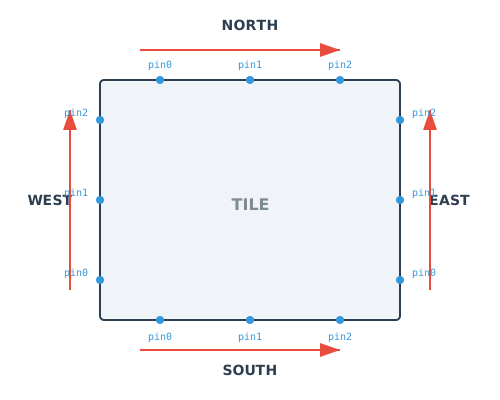
Pin placement order on each side of a tile.
You can change the order of the list by setting the reverse_result to reverse the order of the list and sort_mode to change how the pin is being sorted. We support two sort modes, which are bus_major and bit_minor. bus_major will sort by the name of the bus, and bit_minor will sort by the bit index of the bus. The following is an example:
# Given these pins: [
    "data_bus[1]", "addr_bus[0]", "data_bus[0]", "addr_bus[1]"
]

# Bus Major
data_bus[0]  # Same bus, lower index
data_bus[1]  # Same bus, higher index
addr_bus[0]  # Different bus, lower index
addr_bus[1]  # Different bus, higher index

# Bit Minor
addr_bus[0]  # Index 0 first
data_bus[0]  # Index 0 second (different bus)
addr_bus[1]  # Index 1 first
data_bus[1]  # Index 1 second (different bus)
Stitching the tiles
Once all the tiles are compiled to GDS format with correct sizing, we then can stitch them together. This can be done by using the following command:
fabulous>gen_fabric_macro
And the full fabric will be stitched together.
We have a custom top-level IO placement script which will align all the pins with the IO pins around the perimeter. You will notice there is a small halo ring around the fabric as we will need some extra space to get the clock leader routed. A clock leader is a clock network where an external input clock is supplied at the bottom of the fabric and the signal is routed upward through each tile toward the top, as shown below.
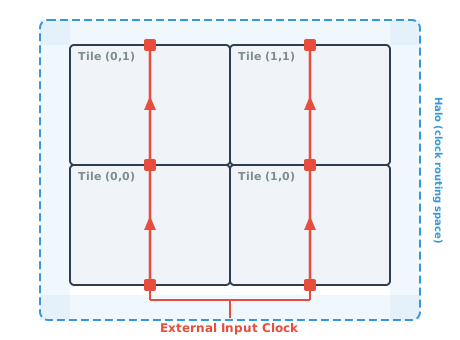
External input clock routing into clock leaders through a 2x2 tile fabric. Red boxes indicate connection points between tiles.
Same as tile implementation, there is a gds_config.yaml file under the Fabric folder where you can set additional variables. Check the flow variable table for available options.
Full Automated Flow
For a fully automated flow that handles tile size optimisation and fabric stitching, use:
fabulous> run_FABulous_eFPGA_macro
Note
The fully automated flow can take significantly longer than manual tile compilation, as it performs design space exploration by compiling all tiles with multiple optimisation modes in parallel before running NLP optimisation. For large fabrics with many unique tiles, expect longer runtimes.
This command performs the following steps automatically:
Design Space Exploration: Compiles all tiles with three optimisation modes (
balance,find_min_width,find_min_height) in parallel to explore possible tile dimensions.NLP optimisation: Uses Non-Linear Programming (via pymoo) to find optimal tile dimensions that minimize total fabric area while satisfying:
Minimum area constraints for each tile
Row height consistency (all tiles in a row must have the same height)
Column width consistency (all tiles in a column must have the same width)
SuperTile spanning constraints
Recompilation: Recompiles all tiles with the optimal dimensions found by the NLP solver.
Fabric Stitching: Assembles all tiles into the final fabric layout.
Note
The automated flow is non-deterministic. The NLP optimisation is solved with pymoo’s ISRES (Improved Stochastic Ranking Evolution Strategy), a stochastic evolutionary algorithm currently run without a fixed random seed. Two runs on the same fabric can therefore converge to slightly different tile dimensions. Every solution is valid (it satisfies the minimum-area and grid constraints), but the solutions are not identical and the reported total area can vary slightly between runs.
Seed control to make the optimisation reproducible is planned but not yet available. FABULOUS_NLP_FTOL_TOLERANCE only controls the convergence tolerance, not the randomness.
When to use the automated flow
The automated flow is designed for fast bring-up of a custom fabric with custom tiles to a good result. It takes you from RTL to a stitched GDS with a globally area-optimised set of tile sizes without hand-tuning each tile, by exploring the design space and letting the NLP solver trade off all tiles at once. The result is a strong starting point rather than a hard ceiling. You can usually push PPA further by tuning the flow variables for your PDK and tiles.
If you instead need fine control, for example you are iterating on a single tile, or some tiles are already hardened, the manual per-tile flow gives more predictable, repeatable results. A good greedy recipe that gets close to the automated result is:
Harden the majority tile (the most repeated tile, usually the LUT/CLB tile) with
gen_tile_macro <tile> --optimise balance.For the other tiles in the same row, fix their height to the majority tile’s height and optimise width only (
find_min_width).For tiles at the edge of a row or column, fix the width and optimise height only (
find_min_height).
Because the majority tile dominates the total area, optimising it first and matching the rest around it gives a good, though not guaranteed globally optimal, result. The automated flow is what closes that last gap by optimising every tile jointly.
Working with pre-hardened macros
A common case is adding a column of pre-hardened macros, such as an SRAM macro generated by a memory compiler. This is possible, but the tile that contains the macro needs extra settings in its per-tile gds_config.yaml so the flow knows about the macro (for example pointing the flow at the macro views, fixing its placement, and pinning the tile’s DIE_AREA to a size that fits the macro). The automated flow is intended to pick up that tile configuration and harden the rest of the fabric around the provided macro tile.
Warning
This pre-hardened-macro path through the automated flow has not been tested yet. If in doubt, it is always safe to fall back to the manual flow.
In the manual flow, harden the macro tile with fixed dimensions (FABULOUS_OPT_MODE: no_opt and an explicit DIE_AREA), then size the remaining tiles around it. Because tiles in a row must share a height (and tiles in a column a width) for seamless stitching, match the macro height to the majority tile height. As there are usually more logic tiles than macro tiles, matching the macro to the logic tile (rather than the reverse) wastes the least area. If a single tile height cannot fit the macro, model it as a supertile spanning two or more tile heights and adjust the width accordingly. For the general mechanism of integrating macros into a LibreLane run, see the LibreLane macro guide.
The io_pin_order.yaml for each tile is generated during gen_tile_macro (see Pin Config), using the fabric structure to align with adjacent tiles, so pin placement is handled in the manual per-tile flow as well as the automated flow.
Tile Size Optimisation
The GDS flow includes an iterative optimisation process to find the minimum viable tile dimensions. This is controlled by the FABULOUS_OPT_MODE variable.
Optimisation Modes
Mode |
Description |
Use Case |
|---|---|---|
|
Alternates between increasing width and height to find minimal area |
Recommended - Best for most tiles |
|
Increases width iteratively while keeping height fixed |
When height is constrained |
|
Increases height iteratively while keeping width fixed |
When width is constrained |
|
Increases both dimensions together |
Quick compilation, larger area |
|
No optimisation, uses provided |
Manual control, requires |
How Optimisation Works
The flow starts with an initial die area (either provided or calculated from instance area)
It runs through placement and routing
If DRC errors or antenna violations occur, the die area is increased
The process repeats until a clean design is achieved or max iterations (20) reached
The last successful state is used as the final result
If no feasible solution can be found after all iterations, the flow will raise an error and stop the generation.
Output Structure
After successful compilation, the output is organized as follows:
<project>/
├── Tile/
│   └── <tile_name>/
│       └── macro/
│           ├── balance/          # Output from balance optimisation
│           ├── find_min_width/   # Output from width optimisation
│           ├── find_min_height/  # Output from height optimisation
│           └── final_views/      # Final compiled output
│               ├── gds/          # GDSII files
│               ├── lef/          # LEF macro files
│               ├── spef/         # Parasitic extraction (per corner)
│               ├── nl/           # Netlist files
│               ├── pnl/          # Power netlist files
│               ├── vh/           # Verilog header files
│               └── metrics.json  # Compilation metrics
└── Fabric/
    └── macro/
        └── <pdk_name>/           # Fabric output for specific PDK
            └── final_views/
                └── ...           # Same structure as tile
Key Metrics
The metrics.json file contains useful information:
design__die__bbox: Die bounding box (x0 y0 x1 y1)design__instance__area: Total cell areadesign__instance__utilization: Utilization percentageroute__drc_errors: Number of DRC violationsantenna__violating__pins: Pins with antenna violations
Viewing Results
To view generated GDS/ODB files in a GUI:
# View in OpenROAD GUI (for ODB files)
fabulous> start_openroad_gui --tile <tile_name>    # View specific tile
fabulous> start_openroad_gui --fabric              # View fabric
fabulous> start_openroad_gui --last-run --tile <tile_name>  # View latest run

# View in KLayout GUI (for GDS files)
fabulous> start_klayout_gui --tile <tile_name>
fabulous> start_klayout_gui --fabric
Resuming the LibreLane flow from a failed step is not supported yet. When a tile or fabric run fails, use start_openroad_gui --last-run --tile <tile_name> (or --fabric) to open the last .odb of that run and inspect where it went wrong.
Troubleshooting
If you encounter issues during the GDS flow, please ask for help in the GitHub Discussions.